Showing posts with label Mozilla Firefox. Show all posts

HOW TO DISSABLE FACEBOOK TIMELINE


Facebook Timeline - is a radical new profile page design that Facebook has introduced. Facebook Timeline changes the default profile from a list of your most recent updates to a complete summary of your entire life since birth. It includes photos, videos, status updates and locations you have visited. The new Facebook profile is divided into two main columns, with a line down the middle representing the passage of time.

Earlier or late last year 2011, facebook timeline was only available to facebook users who activated this new profile design in developer mode and would deactivate it by deleting the developer application created with it.

Facebook has officially started rolling out the old classic profile view in some countries,. and it is for this reason that even the facebook users who activated timeline in developer mode would not deactivate it even after deleting the application created with it.

Old Profile Layout


Timeline Profile View


Unfortunately, most facebook users deslike the new timeline profile view and would rather go back to the old classic profile layout. So if you are one of those, then here is a trick that will help you dissable facebook timeline.


How to Dissable Facebook Timeline

Firefox Users
1. Go to https://addons.mozilla.org/en-US/firefox/addon/user-agent-switcher and install User Agent Switcher Addon then restart your browser.
2. If you dont see the User Agent Switcher Icon, Right-Click on the navigation bar, select Customise to open the Customise toobar, then drag and drop the icon to the navigation bar as shown below.


3. Now click the Icon, and hover the mouse over Internet explorer and select Internet explorer 7


4. Now login to your facebook account, you should be able to see your old profile layout.

Note: Somtimes your facebook page may incorectly be displayed depending on the browser version. In such a situation, you can try to select Internet explorer 6 on step 3.

Google Chrome Users
1. Go to https://chrome.google.com/webstore/detail/djflhoibgkdhkhhcedjiklpkjnoahfmg and install the User Agent Switcher for Chrome. Remember to always restart your browser after installing any extension for better functionality.
2. Now Click on the User Agent Switcher Icon and Select Internet explorer 6 as shown below.


3. Now login to your facebook account,.. and you will have your old profile look back :xD

Thats it! but always remember to set the User Agent Switcher to default if you are not using facebook as this may also cause an undesirable or wrong display on other web pages on the internet.

Read More | comments

HOW TO REVEAL PASSWORD IN ASTERISK FORM (****) | ASTERISK UNMASKING |


Am very sure that we have all come across a situation where we cant reveal somebody's password (in most cases) which is in Asterisk form (****). This ussually happens when a user forgot to logout from a specific site and proberbly set their login preferences to ''Remember me''. So we can easily login to their account but we deffinately wouldnt see their password. The real picture of what am trying to say is shown in the image below


Now many of you have come across a screen like the one above, it may be from your friend's computer, your computer or from an internet cafe where somebody accidentally forgot to secure his details. But whichever the case, our main aim in this tutorial is to reveal the password behind the asterisk.

HOW TO REVEAL PASSWORD IN ASTERISK FORM

1. Google Chrome Browser
  •  Simply highlight or select the asterisk password and right-click on it, then scroll down and click on ''Inspect element'' as shown below.
  • A pop up box will appear on at the bottom of your browser window. see the image below

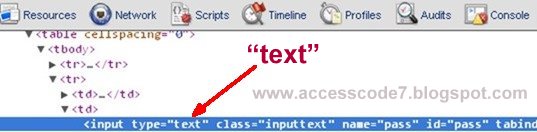
  • Now double-click where it is lebelled ''password'' and change it to ''text'' as shown in the images below.
ScreenShot 1

ScreenShot 2
  • After changing it, Hit Enter!!! you will be able to see the password in clear text :D

2. Opera Browser
I also tried out the same trick opera browser (Opera Next ) and it works too,.. Same method as that of Google chrome browser. Though there is a slight difference in the pop up window. See the image below..


3. Mozilla Firefox
As for the firefox browser, it has got no built in ''Inspect Element'' feature lolz. Therefore you will need two firefox extensions known as..

- DOM Inspector (download here )
- InspectThis (download here )
    • Install both the above extensions into your firefox and restart your browser. 
    • Now go to the Asterisk password, highlight and right-click on it, then scroll down your options and click on ''Inspect Element''


    • Clicking on "Inspect Element" will open the "DOM Inspector" window
    • In the right pane of the DOM Inspector window, double click on where it says "Type" and "Password" as shown below.

    • An "Edit Attribute" pop up will open,. 

    • Now change the Node Value to from "password" to "text" and hit Enter!!! .... tadaa! at this point, you will be able to see the password in clear and plain text :xD
    NOTE THAT : I only used facebook as an example in the above images,. the above methods will work on any login panel of any site..
    Read More | comments

    HOW TO SELECT ALL FRIENDS WITH A SINGLE CLICK | INVITE TO FACEBOOK FAN PAGE OR EVENT

    As we all know, after creating a facebook fan page, event e.t.c we all wish to invite as many friends as possible. But this part often becomes tricky as facebook doesn't offer a ''select all'' button. What i mean is,... for example if i have more than 3000 friends on my friends list and that i need to invite them all to an event, you certainly don't think I'll tick or check on all of them, one after the other? hell NO! That would be total chaos. Lately, there has been a number of javascript codes that helped in checking or marking all your friends to be invited. The sad part is that most of the javascript codes are no longer working. But as Accesscode7, we bring to you yet another interesting hit!!!.... :xD

    So lets start....

    Requirement
    1. Mozilla Firefox browser
    2. Greasemonkey Extension
    3. Select all plugin (script)
    4. A Facebook Account :P
    Procedure
    • With your Firefox browser, go to https://addons.mozilla.org/en-US/firefox/addon/greasemonkey and install the Greasemonkey Extension then restart your browser.
    • Now go to http://userscripts.org/scripts/show/89653 and install the greasemonky ''select all'' script, then restart your browser. If the script fails, you can use another mirror here.
    • Your script is ready, now login to your facebook account and go to where you want to invite friends e.g An event.
    • You will notice the difference in the Invite Friends pop up box. Take a look at the screenshots below..


    • So there you have it, you will be able to see a ''select'' button and some other customising options. So you can now hit the select button, sit your a** back and watch all your friends get marked automatically :D:D:D

    Hope you enjoyed the post, if you have any problem, feel free to comment below or contact me via facebook, for the mean time. xD
    Read More | comments

    HOW TO EXTRACT ALL USERNAMES & PASSWORDS STORED IN MOZILLA FIREFOX

    PasswordFox - small password recovery tool that allows a user to view the usernames and passwords stored under Mozilla Firefox Web browser. By default, PasswordFox displays the passwords stored in your current profile, but you can easily select to watch the passwords of any other Firefox profile. For each password entry, the following information is displayed: Record Index, Web Site, User Name, Password, User Name Field, Password Field, and the Signons filename.
    PasswordFox works on every platform of microsoft wondows - Windows 2000, Windows XP, Windows Server 2003, Windows Vista, and Windows 7

    How to Use PasswordFox

    First, download passwordFoxhttp://www.nirsoft.net/utils/passwordfox.zip
    • Extract the rar file
    • Double click on Password Fox
    • Within a matter of second the software will scan all the saved password in Mozilla Firefox
    • If you want to save all password
    • Click on EDIT->SELECT ALL-> FILE->SAVE AS->Type the filename and select the type of extension and Click on SAVE.


    NOTE: Such tools might be detected by your Antivirus Software not because they have a virus/Trojan, but because they are simply Hacking tools. Therefore it'll be nothing but a false positive detection.

    Enjoy: D


    Read More | comments

    HACKING EXTENSION FOR FIREFOX (XSS Me)


    Cross-Site Scripting (XSS) is a common flaw found in todays web applications. XSS flaws can cause serious damage to a web application. Detecting XSS vulnerabilities early in the development process will help protect a web application from unnecessary flaws. XSS-Me is the Exploit-Me tool used to test for reflected XSS vulnerabilities.


    DOWNLOAD
    Read More | comments

    Total Pageviews

    Free Automatic Backlink Free Auto Backlink
    japanese instant free backlink
    Free Automatic Backlink Service Malaysia Free Backlink ServicesFree Promotion LinkFree Smart Automatic BacklinkMAJLIS LINK: Do Follow BacklinkLink Portal Teks TVAutoBacklinkGratisjapanese instant free backlink Free Plugboard Link Banner Button

     
    Copyright © 2011. Ethical Hacking Unleashed . All Rights Reserved.
    Company Info | Contact Us | Privacy policy | Term of use | Widget | Advertise with Us | Site map
    Template modify by Creating Website